n8n Integration
Supervaize Studio can use an n8n workflow as an Agent.
This lets you:
- link an existing n8n workflow by URL
- run it from Supervaize as a Job
- pass job inputs and agent parameters into n8n
- track execution progress in Supervaize
- optionally pause for Human-in-the-Loop approval (MCP mode)
Two Integration Modes
1. Zero-touch (default)
Use this when you want the fastest setup and do not want to modify your workflow.
What you need:
- an n8n workflow with a Webhook trigger node
- for example:
hello_world_zero_touch.json
- for example:
- an n8n API Key
- see get n8n api for how to get your API key
What Supervaize does:
- triggers your n8n webhook
- polls n8n execution status automatically
- creates Case steps from completed n8n nodes
Good for:
- existing webhook workflows
- quick onboarding
- no HITL (human approval) steps required
2. MCP Reporting (advanced)
Use this when you want rich progress reporting and Human-in-the-Loop (HITL).
What you need:
- an n8n workflow that includes MCP Client nodes
- n8n API Key (used for linking/metadata and some runtime operations)
- MCP Access Token from n8n
- MCP Client nodes configured to call Supervaize MCP tools
What you gain:
- explicit case start/step/status reporting
- human input requests from n8n to Supervaize
- workflow resume after user decision
Before You Start
Prepare these values:
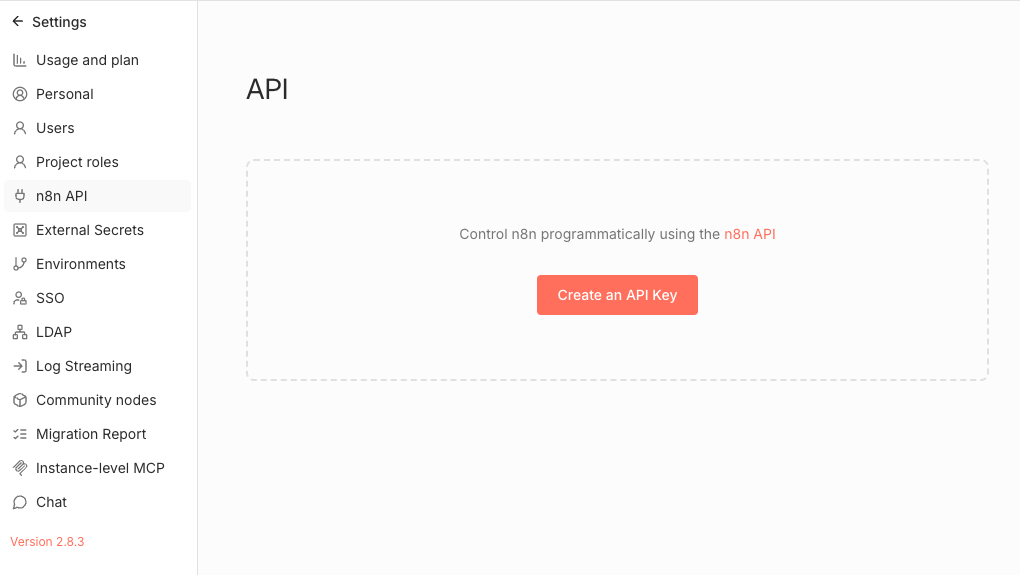
Workflow URL(for examplehttps://n8n.example.com/workflow/<id>)n8n API Key(in n8n go toSettings->n8n API, then click Create an API Key)MCP Access Token(only for MCP mode; in n8n go toSettings->Instance-level MCP)
Get n8n API :
Setup Instance-level MCP :
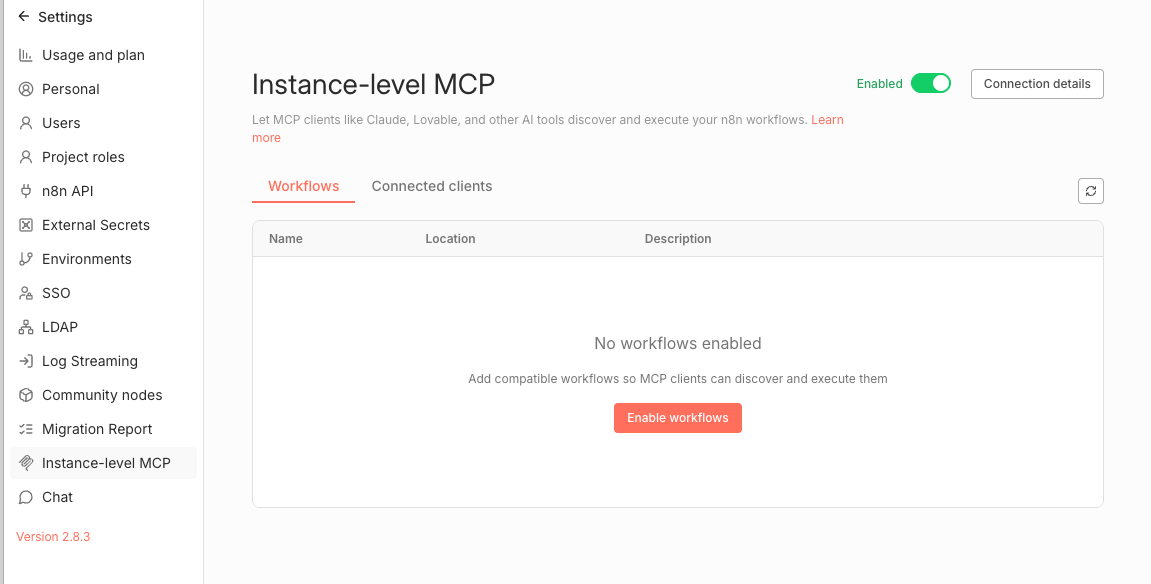
For the MCP token in n8n:
- make sure Instance-level MCP is Enabled
- open Connection details and copy the access token
- if the page shows
No workflows enabled, click Enable workflows for the workflows you want MCP clients to discover/execute
Workflow requirements by mode:
- Zero-touch: must include a
Webhooktrigger node. - MCP mode: should include MCP Client nodes calling Supervaize tools such as
report_case_start,report_case_step,request_human_input,get_case_status, andreport_case_status.
Link a Workflow by URL (Recommended)
In Supervaize Studio:
- Open the n8n Workflow Integration page (
Settings/Integrations). - Click Link by URL.
- Paste the workflow URL.
- Enter your n8n API Key.
- Leave Enable MCP Reporting off for zero-touch, or turn it on for MCP mode.
- If MCP mode is on, paste your MCP Access Token.
- (Optional) Add workflow parameters in the form (name, description, secret, required).
- Click Link Workflow.
What happens automatically:
- Supervaize fetches your workflow metadata from n8n
- detects webhook path (for zero-touch)
- auto-detects parameters from credentials and code nodes
- creates an Agent linked to that n8n workflow
Import a Workflow from JSON (Alternative)
You can also click Import JSON and paste exported workflow JSON from n8n.
Use this when:
- you already exported a workflow file
- you want to import without using the workflow URL flow
You will provide:
- workflow name
- n8n host URL
- JSON content
- optional authentication (API key or username/password)
How Your n8n Workflow Receives Data
When a Job starts, Supervaize sends a JSON payload to n8n (webhook/MCP input) with:
job_idjob_contextjob_fieldsagent_parameters
Typical structure:
{
  "job_id": "...",
  "job_context": { "workspace_id": "...", "started_by": "..." },
  "job_fields": { "Some input": "value" },
  "agent_parameters": { "API_KEY": "...", "LOOKUP_COUNT": "3" }
}
In n8n Code nodes, read it from the webhook body (common pattern):
const body = $input.first().json.body || $input.first().json;
const agentParams = body.agent_parameters || {};
const jobFields = body.job_fields || {};
Parameters: What Users Configure in Supervaize
Supervaize can create Agent parameters from:
- n8n credentials used in the workflow
- code references like
agent_parameters.API_KEY - parameters you manually define during linking
Behavior:
- names containing
KEY,SECRET,TOKEN,PASSWORDare treated as secret - some required/optional flags are inferred from code patterns
- users fill these values in the Agent configuration before running jobs
Running the Workflow from Supervaize
After linking:
- Open the created Agent.
- Fill any required Agent parameters.
- Start a Job from Supervaize.
- Watch Job and Case progress in Supervaize.
In zero-touch mode:
- Supervaize polls n8n (about every 10 seconds)
- each completed n8n node appears as a Case step
- a final summary step is added when execution ends
In MCP mode:
- progress depends on what your MCP Client nodes report
- HITL steps can pause the workflow until a user responds in Supervaize
Human-in-the-Loop (MCP Mode)
MCP mode supports approval/decision loops:
- n8n calls
request_human_input - Supervaize shows the question/form in the Case
- A user responds in Supervaize
- n8n calls
get_case_status(or resumes via the designed MCP flow) - Workflow continues based on the response
Use MCP mode when your workflow needs:
- approvals
- operator confirmation
- manual correction/selection
Example Workflows (Attached Files)
The three example files you shared map to the supported usage patterns:
Download the examples:
hello_world_zero_touch.json (first test)
What it is:
- Minimal zero-touch example
- Flow:
Webhook->Code->Respond to Webhook - Good for first connectivity test
How to use it:
- Import it into n8n (
Import from Fileor paste JSON). - Activate the workflow in n8n.
- In Supervaize, link it with Link by URL (leave MCP disabled).
- Start a test Job.
- Confirm Supervaize creates a Case and shows node steps for the webhook/code/response nodes.
zero_touch_exp_1.json (parameters + validation)
What it is:
- Practical zero-touch example with parameter validation
- Reads
agent_parametersandjob_fields - Demonstrates a required parameter check for
API_KEY
How to use it:
- Import and activate the workflow in n8n.
- Link it in Supervaize using Link by URL (MCP disabled).
- Open the created Agent and verify parameters were detected (for example
API_KEY,LOOKUP_COUNT,NOTIFICATION_EMAIL). - Set
API_KEY(required). Optionally setLOOKUP_COUNTandNOTIFICATION_EMAIL. - Start a Job and inspect the Case steps and final response in Supervaize.
Notes:
- If
API_KEYis missing, the workflow intentionally throws an error. This is useful for testing parameter validation and failure reporting.
HITL_exp.json (MCP + Human-in-the-Loop)
What it is:
- MCP/HITL example
- Includes multiple
MCP Clientnodes and aWaitnode - Shows an advanced pattern for human decision steps
How to use it:
- Import and activate the workflow in n8n.
- Configure the MCP Client nodes in n8n to call the Supervaize MCP endpoint and tools.
- In Supervaize, link the workflow by URL and enable MCP Reporting.
- Paste your n8n MCP Access Token during linking.
- Start a Job and watch the Case for MCP-reported steps.
- When a human-input request appears, respond in Supervaize.
- Confirm the workflow resumes and completes in n8n/Supervaize.
Important:
- This example requires MCP node configuration inside n8n. It will not provide HITL behavior in zero-touch mode.
Recommended onboarding path:
- Start with
hello_world_zero_touch.json - Move to
zero_touch_exp_1.json - Use
HITL_exp.jsonwhen you need approvals/HITL
Troubleshooting
"Invalid n8n authentication credentials"
Check:
- API key is valid
- workflow URL points to the correct n8n instance
- the workflow is accessible with that key
"Workflow not found or not accessible"
Check:
- URL is the direct workflow URL (not a list page)
- the workflow ID exists
- your n8n API key has permission to read it
Zero-touch job does not start
Check:
- workflow contains a
Webhooktrigger node - webhook path is configured on that node
- n8n server is reachable from Supervaize
- Agent has
n8n_api_keyconfigured
No HITL step appears in Supervaize
Check:
- MCP mode was enabled when linking
- MCP Access Token is set
- workflow contains MCP Client nodes
- MCP Client nodes call Supervaize MCP tools (
request_human_input, etc.)
Best Practices
- Use zero-touch first unless you specifically need HITL.
- Keep parameter names stable (
API_KEY,PHONE_NUMBER, etc.) so existing Agent config remains reusable. - Mark secrets as secret parameters in the link form.
- Add a simple webhook-based smoke test workflow before linking a production workflow.